
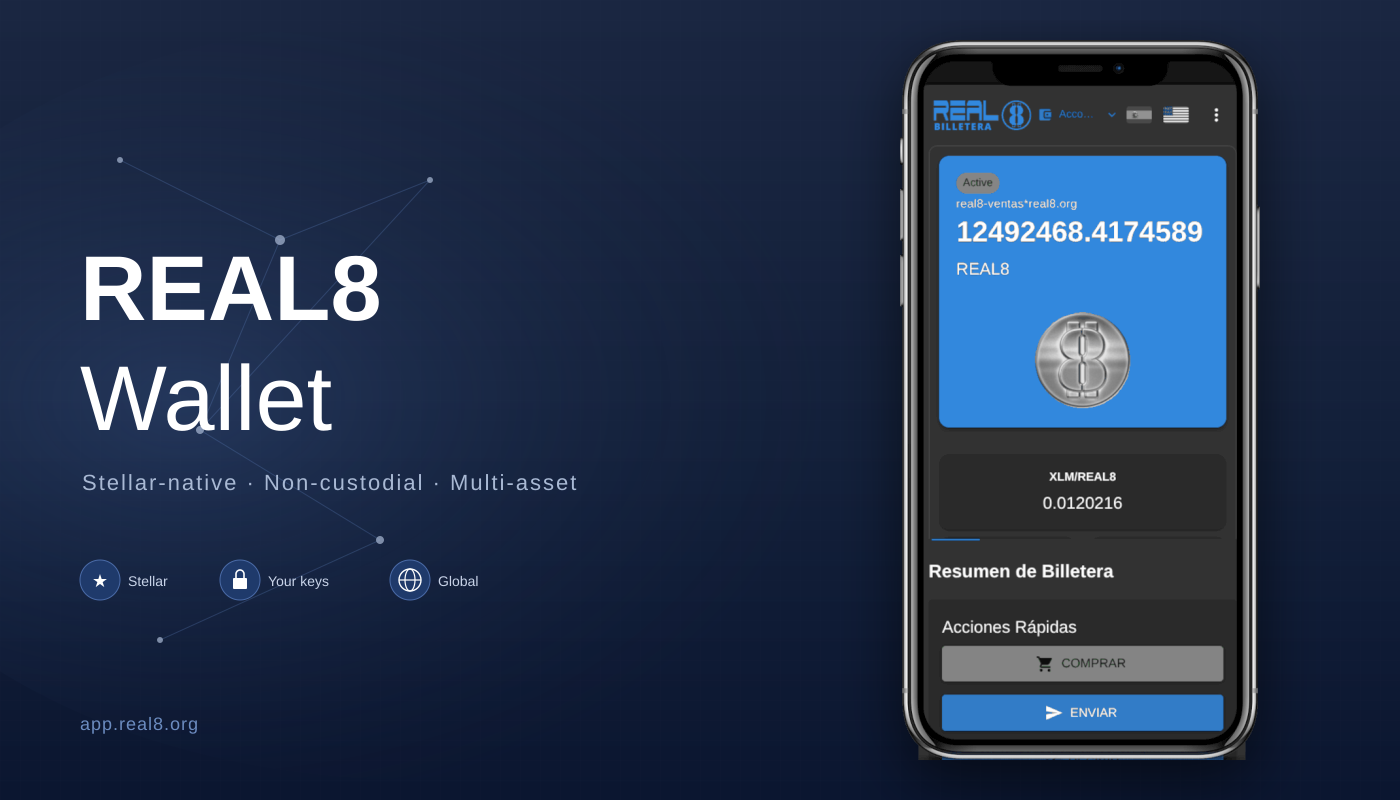
A complete walk-through of what you can do with the REAL8 Wallet, from creating an account to providing liquidity, sending money across borders, and customising every preference.
What is the REAL8 Wallet?
The REAL8 Wallet (app.real8.org) is a free, web-based, non-custodial wallet for the Stellar network. “Non-custodial” means you, and only you, hold the keys to your money. REAL8 cannot access your wallet or move your funds. There is no email, no password, no recovery question on a server somewhere; just a secret key on your device that proves the money is yours.
The wallet supports the following assets natively: REAL8 (our Stellar asset, with a strategic plan to be pegged to the price of silver), wREAL8 (wrapped REAL8 on Base, BSC, Optimism, and Solana), USDC (US dollar stablecoin), EURC (Euro stablecoin), XLM (Stellar’s native asset, used for transaction fees), and SLVR / GOLD (precious-metal-tokenised assets).
It also runs as a Progressive Web App: install it to your phone like any native app, with offline support and push notifications.
Creating a wallet
There are two ways to start.
Option 1, Create a new wallet
- Go to
app.real8.organd click “Create Wallet”. - The wallet generates a new Stellar account in your browser, keys are produced locally and never touch our servers.
- You’re shown your public key (starts with
G..., safe to share, like your bank account number) and your secret key (starts withS..., never share, like your bank password and bank vault key combined). - Save your secret key somewhere safe. A password manager is ideal. This is the ONLY way to recover your wallet if you lose access, REAL8 cannot help you recover a lost secret key.
Option 2, Import an existing wallet
If you already have a Stellar account (created in another wallet, or restored from a backup), you can bring it in:
- Go to
app.real8.organd click “Import Wallet”. - Paste your existing Stellar secret key (starts with
S...). - The wallet validates the key and loads your existing balances, history, and trustlines.
Either path, no email, no KYC at this stage, no waiting list.
Optional: email a backup of your credentials
After creating a wallet, the wallet offers an option to “Email credentials to myself” as a backup. Be aware of the trade-off:
- Convenience: if your phone is lost, you can recover access by checking the email.
- Security caveat (today): the credentials are sent in plaintext inside the email. The transport (HTTPS to the backend, TLS to your mail provider) is encrypted, but the email content itself is not. This means anyone who can read your email (your provider, anyone with mailbox access, anyone who subpoenas your provider) could in principle extract your funds.
Our recommendation is to treat the email backup as a fallback for users who are new to the Stellar ecosystem, not as a primary account. Once you understand the dynamics of REAL8 and XLM we recommend that you open a new account and transfer your funds there. The cost is minimal, and that way you guarantee that only you have access to your private key.
The dashboard, what you see when you sign in
After creating or importing a wallet, you land on the main dashboard. Above the tabs there’s a fixed area with the Total Portfolio Value card (at the very top), the REAL8 Featured Card (Buy / Send / Receive / Rates, plus Withdraw / Deposit), and a Market Prices Grid. Then six tabs across the top:
 Assets, balance summary, asset list, transfers, swaps, trustlines, testnet faucet
 Pools, provide liquidity to Stellar AMM pools
 MoneyGram, cash-in / cash-out via MoneyGram (live in production since June 2026)
 History, every payment, trustline change, swap, pool deposit/withdrawal, MoneyGram operation; filter by date, export to CSV / JSON
 Contacts, built-in address book of saved Stellar addresses
 Settings, network, federation, language, dark mode, secret-key access, privacy
The header has an account switcher dropdown for managing multiple accounts (more on this later) and language flags for switching between Spanish and English on the fly.
Tab 1, Assets
The Assets tab is your main dashboard and where you spend most of your time. It combines a portfolio overview with everything you need to move and manage your tokens.
What you see at a glance
- Total Portfolio Value (in the top card, above the tabs). The sum of everything you hold, wallet balances plus your Liquidity Pool positions, priced in REAL8 by default. Below it your assets appear as selectable chips (“Your assets”). Tap any one and the total is re-expressed in that asset (USDC, EURC, XLM, SLVR, GOLD), with its icon next to the figure. Because it includes what you hold in Liquidity Pools, it won’t exactly match your free REAL8 balance, and that’s expected.
- REAL8 Featured Card, with quick access to the main actions (Buy, Send, Receive and Rates, the converter). Below them, a Withdraw / Deposit button that opens MoneyGram cash-in / cash-out.
- Asset list, every asset you hold, with icons, balances, and live prices.
- Market Prices Grid, current market prices for the major Stellar assets (XLM, USDC, EURC, SLVR, GOLD) so you can see context at a glance.
- A Funding Banner if your account is brand-new and not yet funded with the minimum XLM reserve.
- A Pending Purchase Banner if you’ve started a Stripe checkout that hasn’t fully delivered yet.
Buying REAL8 with a card (Stripe)
If you don’t yet hold any REAL8, the easiest way to get some is the in-app card purchase:
- Click “Buy REAL8” on the REAL8 Featured Card.
- Enter the amount in USD you want to spend.
- The wallet shows you an itemised cost breakdown:
– REAL8 subtotal at the live REAL8/USDC market price
– Stellar account activation cost (only for brand-new accounts: ~3 XLM, displayed in USD)
– Trustline activation costs (the wallet auto-activates REAL8, USDC, and EURC trustlines for new accounts in a single user-signed transaction) - Stripe takes you through a normal card-payment flow.
- Once the payment clears, REAL8 is delivered to your wallet automatically, usually within seconds.
- You receive a confirmation email with the transaction details and (where applicable) a list of activated trustlines.
For new users, this means you can go from zero to a fully-funded REAL8 wallet (with USDC and EURC trustlines ready) in one card payment, no need to acquire XLM separately first.
Trustlines
In Stellar, you need a trustline for any asset you want to hold. Think of it as opting in to receive a specific token. The wallet shows your trustlines, with the option to Add Asset for any supported token. Removing a trustline is also one click (only allowed when the balance is zero).
Sending tokens
Click “Send” on the REAL8 Featured Card. You can send any asset you hold:
- Enter the recipient’s Stellar address (starts with
G...) or their federation address (e.g.,[email protected], much friendlier than a long G-address). You can also scan a QR code from your camera using the built-in QR scanner. - Choose the asset (REAL8, USDC, EURC, XLM, etc.) and the amount.
- Optionally, add a memo (some recipients require this, check with them; centralised exchanges almost always do).
- Confirm. The transaction settles on the Stellar network in about 5 seconds with a fee of fractions of a cent.
- The wallet shows a clear success message with the transaction hash, which you can use to look up the transaction on a block explorer.
You can also add the recipient to your Address Book straight from the success screen, so you don’t have to retype it next time.
Receiving tokens
Click “Receive” to display your QR code and address. Two easy ways to share with someone:
- Show your QR code, the wallet displays it large and clear. The other person scans it with their wallet’s camera.
- Share your federation address, if you’ve registered one (Settings → Federation), you can be reached at
[email protected]instead of a long G-address.
Swapping assets
The wallet integrates the Stellar DEX directly, you can swap between any two assets you hold (or that have a market) without leaving the wallet. The Swap dialog shows you the live exchange rate, lets you set a slippage tolerance, and submits a path-payment under the hood. Useful when you want to convert REAL8 → USDC, XLM → REAL8, or any other supported pair.
Testnet funding
If you’ve switched to testnet (in Settings), the Assets tab also shows a Testnet Funding section with one-click access to:
- XLM Friendbot, gives you 10,000 free testnet XLM
- USDC Circle Faucet, for USDC test tokens
- REAL8 testnet faucet, gives you 10,000 free testnet REAL8 (one-time per address)
Useful for trying things out without risking real funds.
Tab 2, Pools (Liquidity Pools)
Stellar has native automated market-maker (AMM) liquidity pools. Anyone can deposit a balanced pair of assets into a pool and earn a share of the trading fees that pool collects. The wallet’s Pools tab makes this accessible.
Browsing pools
The Pools tab lists active liquidity pools relevant to REAL8 and the assets you hold, things like REAL8 ↔ USDC, REAL8 ↔ XLM, etc. For each pool you see:
- The asset pair
- Total liquidity (TVL)
- Your current position (if any)
- Recent trading volume
Joining a pool
- Click “Join Pool” on the pool you want to provide liquidity to.
- Enter how much of asset A you want to deposit; the wallet auto-calculates the matching amount of asset B based on the current pool ratio.
- The wallet shows you:
– Your share of the pool
– The trustline you’ll need (auto-created if missing, this is a separate transaction)
– Slippage tolerance (default 10%)
– Estimated XLM reserves needed (1 XLM per new pool participation) - Confirm. The deposit is submitted and your wallet shows your new pool position.
Leaving a pool
- Open your pool position from the Pools tab and click “Leave Pool”.
- Use the slider to choose how much of your position to withdraw (0% to 100%).
- The wallet shows you what you’ll get back of each asset based on the current reserves and a 5% slippage tolerance.
- Confirm. The withdrawal returns the assets to your wallet immediately.
About risks
Liquidity pools earn fees but expose you to impermanent loss, if the price ratio between the two pooled assets changes significantly, your withdrawal will be worth less than if you had simply held both assets unchanged. The wallet shows you your position transparently; we recommend providing liquidity only to pairs you understand and intend to hold for a while.
Tab 3, MoneyGram
✅ Now live. MoneyGram cash-in / cash-out has been active since June 2026, and you can use it with real funds.
With MoneyGram you can:
- Open the MoneyGram tab in the wallet (or tap Withdraw / Deposit on the REAL8 Featured Card).
- Choose Cash In (deposit physical cash, receive USDC) or Cash Out (send USDC, collect cash at a MoneyGram location).
- The wallet authenticates with MoneyGram via Stellar’s SEP-10 standard (this happens behind the scenes, you don’t see the cryptography; you see “Connecting to MoneyGram…”).
- A MoneyGram window opens for KYC verification (the first time) and to give you the transaction reference code and instructions.
- Walk into any MoneyGram location worldwide (or use a digital cash-out option where available) and complete the transaction with your reference code.
- The wallet polls the transaction status and confirms when MoneyGram has settled.
The wallet shows your velocity limits (per-transaction, daily, monthly) directly in the MoneyGram tab, so you always know what you can do without surprises.
This is a major step for our financial-inclusion mission: people in regions where bank access is limited can convert digital savings into spendable cash through MoneyGram’s network across roughly 200 countries.
Tab 4, History
The History tab gives you a complete audit trail of every action your wallet has performed:
- Payments sent and received (REAL8, USDC, XLM, every asset)
- Trustline changes (added, removed)
- Swaps on the Stellar DEX
- Pool deposits and withdrawals
- MoneyGram operations (cash-in / cash-out)
- Stripe purchases of REAL8
Each entry shows the date, asset, amount, counterparty, memo if any, and the transaction hash so you can verify it on a Stellar block explorer.
You can filter by date range (useful for fiscal-year reporting) and export the filtered history to CSV or JSON for your accountant, bookkeeping software, or your own records.
Tab 5, Contacts
A built-in address book for the people and organisations you transact with regularly. Save Stellar addresses (or federation addresses) with friendly names so you don’t have to retype them or worry about pasting the wrong G-address.
From the Contacts tab you can:
- Add a contact manually, with a friendly name and an optional note
- Add directly from any send transaction, after a successful send, the success screen offers a one-click “Save to contacts” option
- Edit or delete existing contacts
- Use a contact in the Send dialog by selecting it from the recipient dropdown
Contacts are stored in your browser only, they’re never uploaded anywhere.
Tab 6, Settings
The Settings tab is where you configure everything about your wallet experience. Sections include:
Network
Switch between Stellar Public Network (mainnet) and Testnet. Testnet is for trying things without risking real funds, you’ll see a clear “Testnet” badge in the header when you’re on it. Each network maintains its own balances and operations history.
Federation
Register a federation address (e.g., [email protected]) so you can be reached using a memorable name instead of a long Stellar G-address. The wallet handles the SEP-2 federation lookup behind the scenes; once registered, anyone using a Stellar wallet that supports federation (most do) can send to you using the friendly address.
Language
Switch between Spanish and English at any time. The choice is remembered. Flag icons in the header give you the same one-click toggle.
Appearance, Dark mode
Toggle between light and dark UI themes. The choice is remembered across sessions.
Security & Privacy
- Show / Hide Balances, privacy mode that masks all balance amounts in the UI. Useful in public spaces.
- View Secret Key, gated behind a clear warning dialog. The secret key is shown only after you confirm; it auto-hides after 30 seconds.
- Browser Storage disclosure, explains that your secret key lives in your browser’s
localStorage, what that means, and how to clear it. - Clipboard auto-clear, when you copy your secret key to the clipboard, the wallet wipes the clipboard 30 seconds later (only if it still contains the same secret).
Notifications
Enable or disable browser push notifications for transaction events.
Backup
Quick access to view + copy your secret key (with the warning + auto-hide) and a button to email credentials again if needed.
Disconnect
Removes the active account from this device. If you have multiple accounts, the wallet switches to the next; if it’s your last account, the wallet returns to the welcome screen. Make sure you have your secret key saved before disconnecting, there is no recovery on the server.
Cross-cutting features
A few things you can do from anywhere in the wallet:
Multi-account management
The header has an account switcher dropdown. From it you can:
- Switch between accounts you’ve already added
- Add new account, create a fresh one, or import another existing secret key
- Rename an account for easier identification
- Remove an account (after you’ve safely backed up its secret key)
Useful for keeping personal and business funds separate, or for managing multiple Stellar identities.
Tasas / Rates Converter
A small currency-converter widget on the REAL8 Featured Card. Type an amount in any supported asset, instantly see the equivalent in any other (REAL8, USDC, EURC, XLM, SLVR, GOLD). All rates are live from the Stellar DEX.
QR Scanner
When you’re sending tokens, you can tap the camera icon in the recipient field to scan a QR code with your device’s camera. Works on iOS Safari and Android Chrome.
Mobile and PWA installation
The wallet works fully in any modern browser, but installs cleanly as a Progressive Web App for a native-app feel. When you visit app.real8.org on a mobile browser, you’ll see a small “Install REAL8 Wallet” prompt. Tap it (or use your browser’s “Add to Home Screen” option) and the wallet appears as an icon on your home screen, opens like a native app, full-screen, with offline asset cache.
Security model, quick summary
A non-custodial wallet means you are the security perimeter. Practical advice:
- Save your secret key in a password manager, not on a piece of paper or a screenshot.
- Never share your secret key with anyone, REAL8 will never ask for it.
- Don’t paste your secret key into any site that isn’t
app.real8.org, phishing wallets are a real and common threat. - Bookmark
app.real8.organd only open the wallet from your bookmark. - Treat the email-credentials backup as a fallback, not a primary, it’s plaintext today (we’re working on encrypting it; see silver-wallet#79).
- Keep your browser updated. Most modern attacks target outdated browsers, not the wallet itself.
- Use the multi-account feature to separate funds, don’t keep everything in one account.
Where to get help
- Email:
[email protected] - Documentation:
real8.org/en/about-real8/ - Stellar community Discord: https://discord.gg/stellardev (channels: #beginners is a good starting point)
- Status / changelog:
app.real8.org/changelog.html
Try it now: open app.real8.org, create an account, save your secret key in a password manager, and buy a small amount with a card to feel the flow. The whole thing takes about 5 minutes.